On this page7 sections
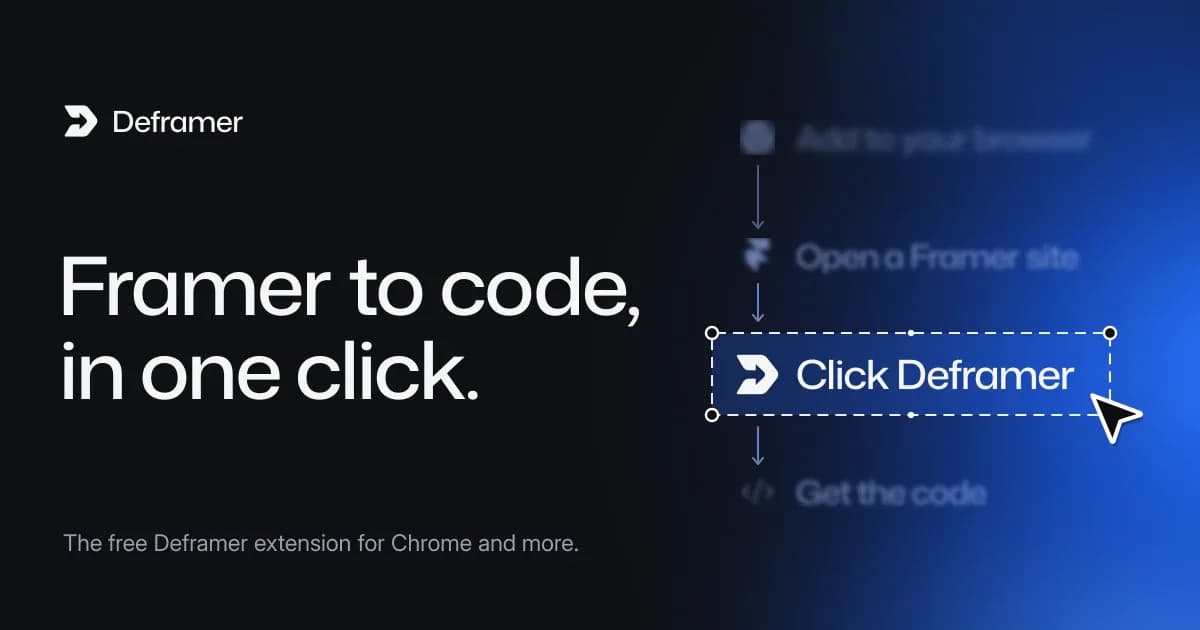
Deframer now has a browser extension. Open a published Framer site, click the Deframer icon in your toolbar, pick a framework and click Convert: you get the same clean TypeScript project as on deframer.co, without copying an address or leaving the tab. It's free, it's on the Chrome Web Store, and one listing installs it in Chrome, Edge, Brave, Opera, Arc and Vivaldi.
Get the Deframer extension → The extension page has the install steps for every browser, the permissions it asks for, and help if something doesn't work.
What the extension does
The extension is a shortcut to the converter you already know. When you click it on a tab, it:
- Tells you whether the site is built with Framer, and whether it's verified for your Deframer account.
- Converts it to Next.js, TanStack Start, Astro, React Router or Vite, with every page, the CMS, forms and animations, and no Framer runtime.
- Lets you choose the assets: keep images, fonts and videos on Framer's CDN, or put them in the project.
- Follows the conversion. Close the popup if you like; the icon shows a check when the project is ready.
- Opens the result on deframer.co, where you compare it side by side with the original and download the code.
Converting is free, as it is on the website. Downloads happen on deframer.co and work the same way: 1 credit for a site you've verified, free with the lifetime deal. The extension never spends credits on its own.
How to install it
Chrome, Brave, Opera, Arc and Vivaldi install Deframer from its Chrome Web Store listing, and Edge from Microsoft Edge Add-ons:
- Chrome, Arc and Vivaldi: click Add to Chrome, then Add extension.
- Edge: on its Edge Add-ons listing, click Get, then Add extension.
- Brave: click Add to Brave.
- Opera: install Opera's Install Chrome Extensions add-on once, then click Add to Opera.
Then pin it, so the icon stays in the toolbar: open the extensions menu (the puzzle piece) and click the pin next to Deframer. Firefox and Safari versions aren't listed yet; in those browsers, paste the address on deframer.co for the same result.
The extension page walks through each browser, step by step.
Your first conversion, in four clicks
- Connect your account. On a Framer site, click the icon and choose Connect account. You need a free Deframer account.
- Approve the code. The popup shows a short code and opens deframer.co. Check the codes match and choose Allow. You never type your password into the extension.
- Pick a framework and convert. Choose the framework and where the assets go, then click Convert.
- Preview and download. When it's ready, click Preview & download on Deframer to compare the result with your site and download the project.
If the site is yours and not verified yet, the popup shows how under How to verify: paste a one-line tag into Framer's Site Settings → General → Custom Code (start of the head tag), publish, and click Check again. That makes the download 1 credit instead of 10.
The icon that lights up on Framer sites
Deframer's toolbar icon has three colours: gray on other sites, amber while it checks a page, and black and white on a Framer site. Turn on Recognise Framer sites as you browse (on the welcome page after install, or in the popup) and the icon changes by itself as you move between tabs, so you can see at a glance which sites are built with Framer.
That option is off until you choose it. When it's on, the check runs in your browser on the page that's already loaded, looking only for Framer's markers. Nothing is sent to Deframer until you open the extension.
What it can see, and what it can't
The extension installs without any access to your sites. It asks for four permissions, each for one job:
Permission | Why |
|---|---|
activeTab | Read the tab you clicked Deframer on, only then |
scripting | Look for Framer's markers in that tab, without changing it |
storage | Keep you signed in and remember conversions in progress |
alarms | Finish signing in and converting after you close the popup |
When you open the popup, the address of that one tab goes to deframer.co to be checked. That's all. There's no tracking, no ads, nothing sold, and you can disconnect the extension any time from Dashboard → Connected apps on deframer.co. The privacy policy has the full details.
Who it's for
- Designers moving their own site off Framer: open it, click, and the project is a minute away.
- Agencies and freelancers who look after many client sites: see at a glance which ones are Framer, and convert each from its own tab. If you sell migrations, read how to pitch a Framer-to-code migration.
- Developers handed a Framer site to take over: convert it to the framework the team already uses, then deploy it wherever you like.
As on the website, downloads are for your own sites, or sites whose owner has given you permission. Deframer is an independent tool and is not affiliated with, endorsed or sponsored by Framer.
Get it
Install the extension from the Deframer extension page, which links to the Chrome Web Store and Edge Add-ons and covers every browser. If you'd rather not install anything, convert on deframer.co: it's the same converter.