On this page9 sections
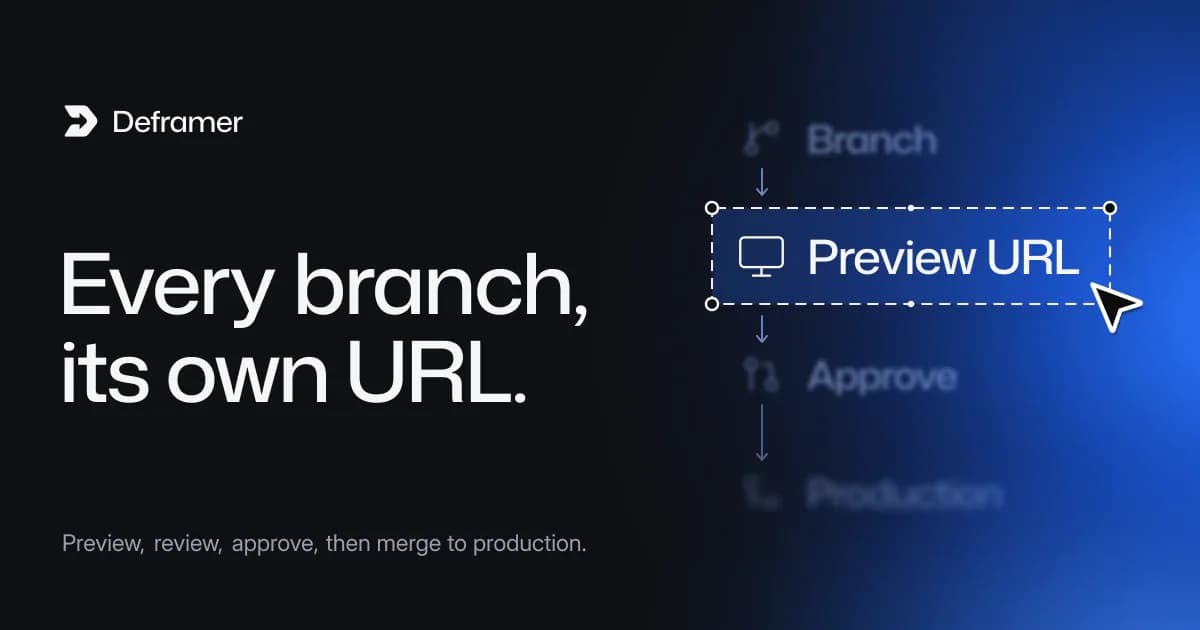
A preview deployment is a full copy of your site, built from a branch or pull request, at its own temporary URL. Once a Framer site is converted to code and lives in Git, Vercel, Netlify and Cloudflare create one for every push that isn't to the production branch, with no extra setup. That replaces Framer's "preview before publish" with something stronger: a designer, client or teammate opens a real link, checks the change on their phone, and approves the pull request before anything reaches the live domain.
Deframer is an independent tool and is not affiliated with, endorsed or sponsored by Framer. The setup below assumes a project converted from a site you own, or one whose owner gave permission.
What changes after you leave Framer's editor
In Framer, the editor's preview and the staging address are how you check work before publishing. After converting, the site is a Git repository, and the equivalent is:
In Framer | In a converted project |
|---|---|
Edit in the canvas | Edit code in a branch |
Preview in the editor | Run |
Staging address | Preview deployment per branch or pull request |
Publish | Merge the pull request into |
Version history | Git history, with the change and its reviewer |
If you haven't put the project in Git yet, maintaining a converted Framer site with Git covers that first step.
Step 1: Connect the repository to your host
Preview deployments come from the host's Git integration, so connect the repository rather than uploading builds by hand.
- Vercel. Import the repository. Pushes to the production branch deploy to production; every other branch and every pull request gets a preview URL, posted as a comment on the pull request.
- Netlify. Connect the repository. Deploy previews are created for pull requests; branch deploys can be turned on for other branches in the site's settings.
- Cloudflare Pages. Connect the repository. Every non-production branch gets a preview at its own
*.pages.devsubdomain.
Each host's details and build settings are in deploying a converted Framer site, Netlify and Cloudflare Pages. Render and Railway offer per-pull-request environments too (Render or Railway).
Step 2: Separate preview settings from production
Previews run the same code with different environment variables. Set them per environment in your host:
- Forms. Point
FORMS_WEBHOOK_URL(Next.js, TanStack Start, Astro, React Router) orVITE_FORM_ENDPOINT(Vite) at a test inbox or a test webhook for previews, so a reviewer's test submission doesn't land in your sales pipeline. Without a webhook, a server project only logs submissions, which is also fine for previews. - Analytics. Leave analytics IDs unset for previews, or use a separate property, so reviews don't inflate traffic. If analytics lives in Custom Code, it's in the code and runs everywhere; add a hostname check around it if that matters to you.
- Secrets. Anything sensitive should be production-only.
Step 3: Keep previews out of search engines
Previews are public URLs unless you protect them. Two layers help:
- Canonical URLs already point at production. A converted project sets each page's canonical URL from
metadataBase(or the site origin in the other frameworks), which names your real domain. A preview that gets crawled still tells search engines where the real page is. - Host settings. Vercel adds a noindex header to preview deployments by default and offers deployment protection (login or password) on previews; Netlify and Cloudflare offer password or access protection on previews too. Check your plan's options and turn protection on for client work.
Step 4: A review flow that works for designers
Designers don't need to read code to review a change. The flow:
- Open a pull request with a plain description: what changed and which pages to check.
- The host posts the preview URL on the pull request.
- The reviewer checks the preview at three widths. Browser dev tools work, but a real phone is better. The widths Deframer's own compare view uses, 1440, 768 and 390 pixels, are a good habit.
- Feedback goes on the pull request as comments, or through the host's feedback toolbar where it has one (Vercel has comments on previews, for example).
- Approve and merge. The production deployment starts on merge.
Write a short checklist in the pull request template so reviews are consistent:
## Review
- [ ] Pages changed look right at desktop, tablet and phone widths
- [ ] Animations and hover states play
- [ ] Links in the changed sections work
- [ ] Forms submit (preview webhook)
- [ ] Page title and description are right
Save it as .github/pull_request_template.md on GitHub.
Step 5: Previews for re-conversions
If you keep designing in Framer and convert again after big changes, previews are where you catch differences before they reach production:
- Republish the site in Framer, then convert it again with Deframer. Converting is free; downloading the new project uses a credit, or nothing with the lifetime deal (pricing).
- Unzip the new output onto a branch such as
framer-sync, commit and push. - Open a pull request against
main. Git shows exactly what the new conversion changed, file by file. - Review the preview. If you've made code changes on
mainsince the last conversion, resolve conflicts on the branch first.
For a pixel-level check, run visual regression tests in the pull request's checks, comparing the preview with production; visual regression tests for a converted Framer site sets that up with Playwright.
Step 6: Add checks that run on every preview
The host builds the preview, but you can add checks that run beside it in CI (for example GitHub Actions) and block the merge if they fail:
name: Checks
on: pull_request
jobs:
  check:
    runs-on: ubuntu-latest
    steps:
      - uses: actions/checkout@v4
      - uses: actions/setup-node@v4
        with:
          node-version: 22
          cache: npm
      - run: npm ci
      - run: npx tsc --noEmit
      - run: npm run build
If the site has code components written in Framer, npx tsc --noEmit may report type errors in src/code or src/vendor that never blocked the build (the Next.js config keeps ignoreBuildErrors on for that reason). Fix them gradually, or leave the type check out of the required checks until you have. Check action versions against GitHub's docs.
Then, in the repository's branch protection, require the checks and one approval before merging to main.
Common problems
- The preview works but production doesn't. Usually an environment variable set for one environment and not the other. Compare both lists in the host's settings.
- Absolute links jump to production. Links written as full URLs (
https://example.com/pricing) in content leave the preview. Relative links stay on it. - Social previews show production images. That's expected: social images resolve against
metadataBase, which is the production domain. - Too many builds. Hosts meter build minutes. Turn off branch deploys for branches you don't review, or skip builds for documentation-only changes.
FAQ
Does Framer have preview deployments?
Framer has its own preview and staging in its editor and hosting. Once a site is converted to code and hosted elsewhere, preview deployments come from your host's Git integration.
Do previews cost extra?
Vercel, Netlify and Cloudflare include previews on their plans, within each plan's build limits. Check your plan.
Can a client review a preview without an account?
Yes, if the preview is public or protected by a shared password. If your host requires a login for protected previews, invite the client or share a password-protected link instead.
Will previews hurt my SEO?
Not if canonical URLs point at production, which they do in a converted project, and previews are noindexed or protected.
Do I need a pull request for every change?
For a solo site, pushing a branch and checking its preview is enough. For client and team sites, pull requests give you a record of who approved what.