On this page9 sections
To back up a Framer site, keep copies that don't depend on your Framer account: export your CMS collections as CSV or JSON, keep your original images, fonts and videos, and store a code copy of the pages themselves. Framer has no code export, so for the pages you convert the published site into a project with a tool such as Deframer, commit the result to Git, and refresh it after significant changes. Framer's own version history is useful for undoing mistakes, but it lives inside the account it's meant to protect you from losing.
This post explains what Framer's built-in safety nets cover, what a backup you own looks like, and how to make and maintain one without much effort.
What Framer's version history does cover
Framer keeps a history of your project, so you can look at earlier versions and restore one when an edit goes wrong. It's the right tool for the everyday problem: someone deleted a section, a layout change broke a breakpoint, you want yesterday's version back. You can also duplicate a project inside Framer to experiment on a copy. How far back history goes and how it behaves on your plan is described in Framer's help center, so check there for the current details rather than relying on a blog post.
Used for that purpose, it works well. The gap is what it can't be.
What it doesn't cover
Version history and duplicated projects all sit inside Framer. That leaves a few situations where they don't help:
- You lose access to the account. A lapsed login, a collaborator who owned the project and left, a billing problem or a suspended account can all cut you off from the history too.
- You want to leave, or switch plans. Before you cancel a plan or move to other hosting, you need something that works without Framer. Before you cancel your Framer plan is the checklist for that moment.
- You need the site as code. A version in Framer's history can't be opened in an editor, built on another server or diffed in Git. Framer has no code export; its help center says it does not offer HTML export for self-hosting (Framer Help). We cover the routes that exist in Can you export code from Framer?.
- You want an off-site, dated copy. A backup that matters is stored somewhere else, by you, with a date on it. History inside the same service is a convenience, not a second copy.
None of this says Framer is unreliable. It's the general rule that a backup shouldn't live in the same place as the thing it backs up.
The three parts of a Framer backup
A complete copy of a Framer site has three parts, and they come from different places.
1. The CMS content
If your site uses CMS collections, the records are the part you can't regenerate. Framer's data-portability article says CMS content can be exported with plugins into structured formats such as CSV or JSON (Framer Help). Export every collection and keep the files with the rest of the backup. Do it again whenever you publish a batch of new items.
A converted project also carries the collections as JSON files, one per collection with its schema, covering everything known when the site was converted. That's a useful second copy, but it's a snapshot of the published site, so a dedicated export before a big edit is still sensible. How those files behave in the code is in Framer CMS to JSON in Next.js.
2. The assets
Images, videos and fonts you uploaded are, or should be, files you already have. In practice they're often scattered across a designer's laptop and Framer's asset manager. Two options:
- Collect the originals into one folder and keep it with the backup.
- Convert with the Assets in the project option, which downloads every Framer-hosted image, font and video into the project's
public/folder. The default, Assets on Framer's CDN, leaves them loading from Framer's CDN, which is fine for a working site but means the backup depends on those files still being there. Assets on the CDN or in the project explains the choice. For a backup, choose Assets in the project.
3. The pages: layout, components, interactions, forms
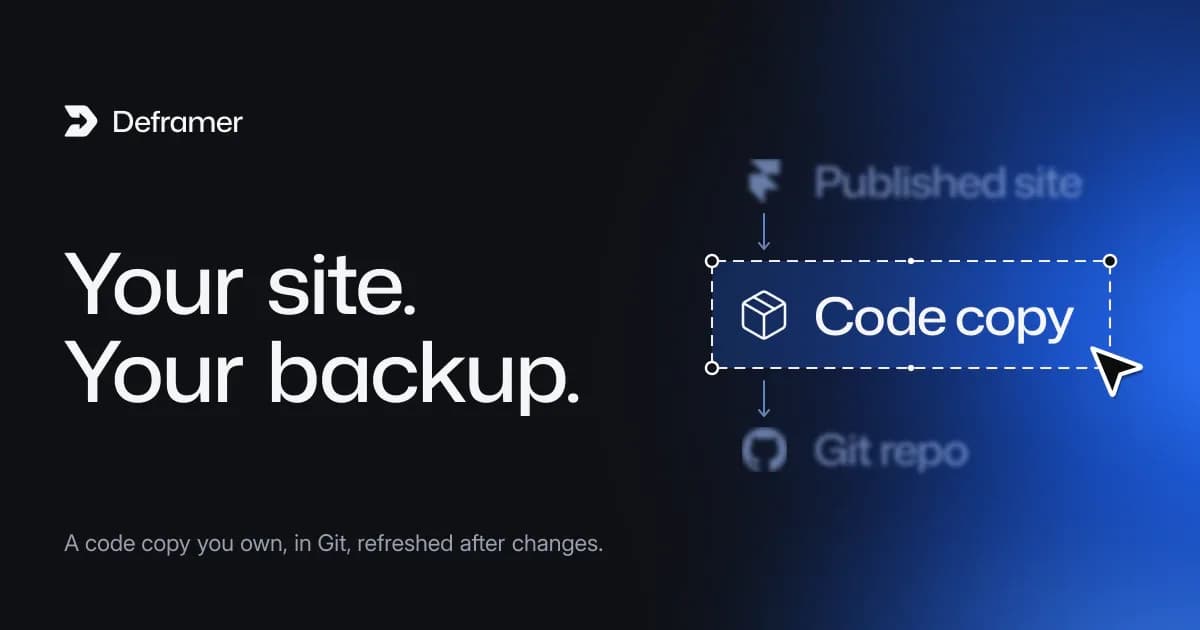
This is the part that has no export. The answer is to convert the published site into a project you hold. Deframer reads what your published site serves (the same files a browser loads, never your Framer account) and writes a TypeScript project: every page as a route with its metadata, components as React components with CSS modules, design tokens, CMS collections as JSON, and native forms handled by their own route or, in a Vite project, posted to a form service. There's no Framer runtime in the result.
That code can be built and run with no Framer account at all, which is exactly what a backup should allow.
Making the code backup with Deframer
- Convert the published site. Paste your site's published address into the convert form at deframer.co. Converting is free and never touches your Framer account.
- Pick the target. Next.js is the default and the best-known option. If your goal is a cheap, portable backup you could host anywhere, Vite gives you a static site with no server; Astro, TanStack Start and React Router are also available. For a backup, the one your team can read matters more than the framework's reputation.
- Choose Assets in the project if you want the copy to be self-contained.
- Verify ownership. To download, Deframer gives you a one-line meta tag,
<meta name="deframer-verification" content="dfv_…">. Add it in Framer under Site Settings, then Custom Code, at the end of the<head>, publish, and click Check again. Only someone who can publish the site can do this. See verifying Framer site ownership. - Download the
.zip. A verified download costs 1 credit; a direct download without verification costs 10. Credits never expire, and the file stays available to re-download for 7 days. Prices are on the pricing page.
Deframer is only for your own site, or one whose owner has given you permission and published your verification tag. If you're backing up a client's site, ask them to add your tag; the agency workflow post covers how.
Put it in Git
A .zip in a downloads folder is a backup in the loosest sense. A Git repository is a better one: dated, comparable and stored on a remote.
unzip my-site.zip
cd my-site
npm install
npm run build        # confirm the backup actually builds
git init
git add .
git commit -m "Initial conversion from Deframer"
git branch -M main
git remote add origin git@github.com:your-name/your-site-backup.git
git push -u origin main
Two details are worth the minute they take:
- Commit the untouched conversion first. It becomes the reference point; later commits show exactly what changed. This is the same habit described in maintaining a converted Framer site with Git.
- Use a private repository if the site has unpublished content or your form endpoints are in the project. The
.gitignorein the project already keepsnode_modules, build output and local.envfiles out of history, and.env.exampledocuments which variables the site reads without their values.
Running the build as part of the backup is the important step. A backup you've never built is an assumption. If it builds and runs locally, you've proved it works without Framer.
Re-export after changes
If the site keeps changing in Framer, the backup goes stale. Re-converting is free; downloading a republished site is a new project and uses a credit, as the pricing page explains. A reasonable rhythm:
- After a redesign or launch: convert and commit. This is the one worth always doing.
- After routine content edits: re-export the CMS collections, and re-convert when the changes touch layout.
- Before a risky change, or before cancelling a plan: convert first, so the last version before the change is on record.
Put the fresh conversion on its own branch and merge it into your main branch, rather than overwriting the folder. That keeps any edits you've made in the code, and Git shows what changed in each conversion. The step-by-step version is in the Git maintenance post.
What a code backup doesn't capture
Be clear about the limits, so the backup does what you expect:
- It's a copy of the published site, not of the Framer project. The project file, with its editor-only structure and unpublished drafts, stays in Framer. What you back up is what visitors see. Keep the project in Framer for as long as you plan to design there.
- Unpublished changes aren't in it. Publish first, then convert.
- Password-protected pages and other gated content depend on what the published site serves; check the converted output rather than assuming.
- Third-party services aren't backed up. Form submissions already received, analytics and email lists live wherever they live. Forms after leaving Framer covers how to get those out.
- It isn't a pixel-perfect guarantee. Converted sites usually match closely, but check the conversion against the original. The common conversion issues post lists what to look for.
A simple routine
For most sites, this is enough:
- Export CMS collections to CSV or JSON, and keep your original assets in one folder.
- Convert the published site with Assets in the project, verify, and download.
- Commit it to a private Git repository and confirm
npm run buildpasses. - Repeat after each major change, on a branch.
- Keep the repository's host and your own storage separate from your Framer login.
Building sites for clients? The affiliates program pays 50% on each sale you refer, so recommending a backup routine can pay for itself.
FAQ
Does Framer back up my site automatically?
Framer keeps a version history of your project that you can restore from, and the details depend on your plan, so check Framer's help center. That history lives inside Framer. It doesn't give you a copy you hold yourself, which is what a backup is for.
Can I download my Framer site as a backup?
Not as code from Framer: it has no code or HTML export. You can export CMS content with plugins as CSV or JSON, and you can convert the published site into a TypeScript project with Deframer, then download and keep it.
How much does a Framer backup with Deframer cost?
Converting is free. A download with ownership verification costs 1 credit and one without costs 10. Credits come in one-time packs of $10 for 1, $25 for 5 or $100 for 30, and never expire. Or pay $397 once and every verified download is free.
How often should I back up my Framer site?
After every launch or redesign, before risky changes and before cancelling or changing a plan. For sites that change weekly, re-export the CMS content on a schedule and convert again when layout changes.
Can I back up a site I don't own?
Only with the owner's permission. Deframer downloads are for your own site or one whose owner publishes your verification tag.